
How to create Image-based AR campaign
What is Image-based AR
When an image is found by web app camera, AR content(s) appear on top of it or near it. The content can be a 3D model (static/animated), video, image gallery or even interactive buttons. If you are looking for a customized image-based AR web app, our team can help you to achive it. This is based on a combination of Three.js, A-Frame and Mind AR.
The engagement and entertainment rate are quite high for image-based Augmented Reality. Image-based AR experience is tied to your custom image. This means that you can use the target image in real world (banner, ad, leaflet, magazine etc.) or digital world (Facebook ads, Twitter, LinkedIn, Instagram, TikTok or anywhere). The AR experience will be displayed on top of the image and move along with the image as it moves around.
Use Cases: Product marketing, gamification experience, entertainment, augmented art, business card, ed-tech sector (books), magazine ads, flyers, any form of printed advertising etc. to bring the best AR experience for users. Imagination is the limit for image based AR.
Compatibility: It works on any phone with webgl and webrtc.
Step by Step Process to Create Image-based AR
Follow the below steps to build your first AR campaign within minutes. Go to the central dashboard (after you login, you land up here) and click on any of the buttons - Create AR Campaigns or Add New Campaign.
1. Provide a name for your campaign. Please remember not to use any space, underscore or special character within the campaign name (Read here for associated reasons).
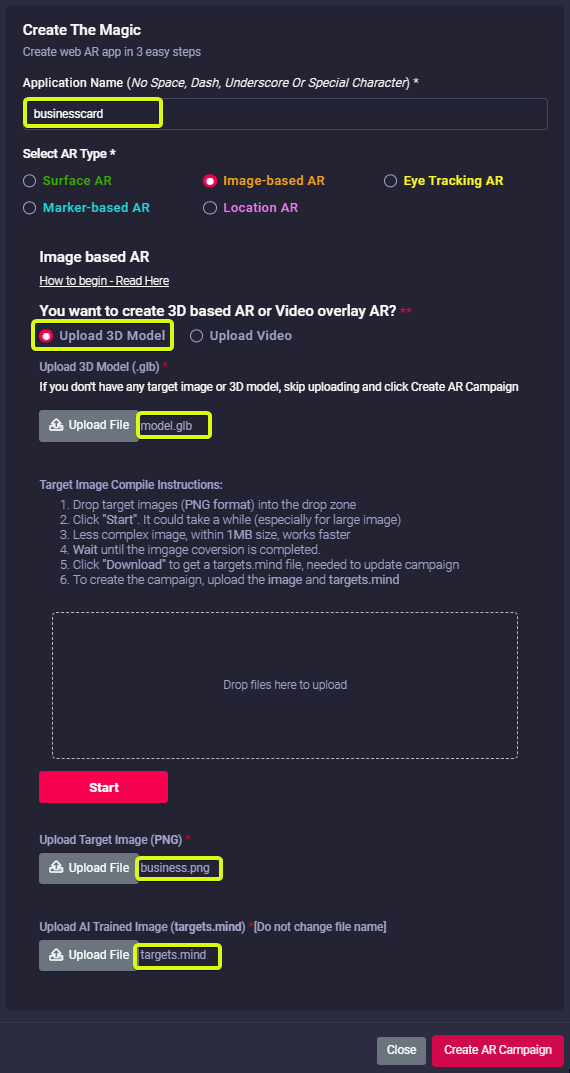
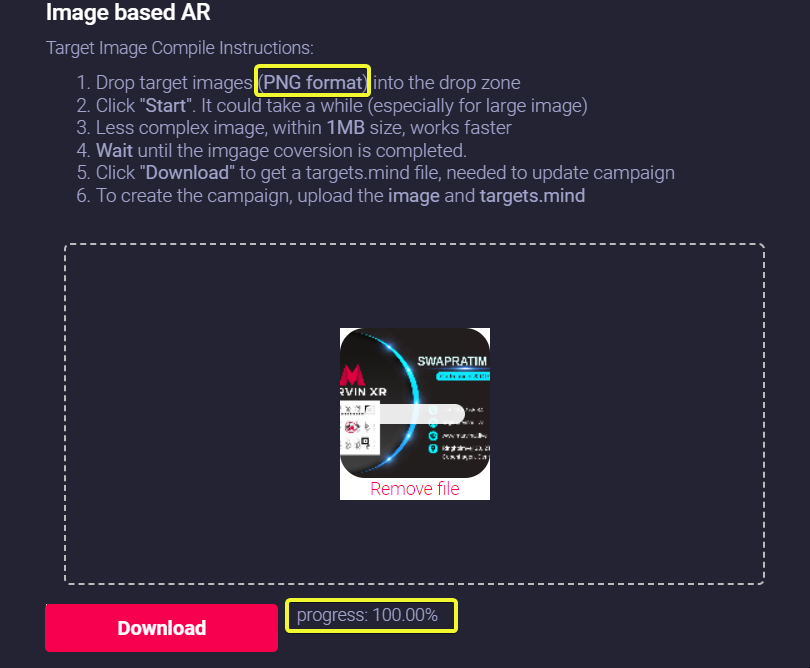
2. Drag your traget image (.PNG format) to the dropbox and click on Start button to create the camera identifiable format (targets.mind). Based on the size and the complexity of the image, it can take from few seconds to couple of minutes to complete this step.
Click Download button to download the AI generated camera recognition trained model (targets.mind).
|
Do not change the name of the file. Keep the trained model name as targets.mind |
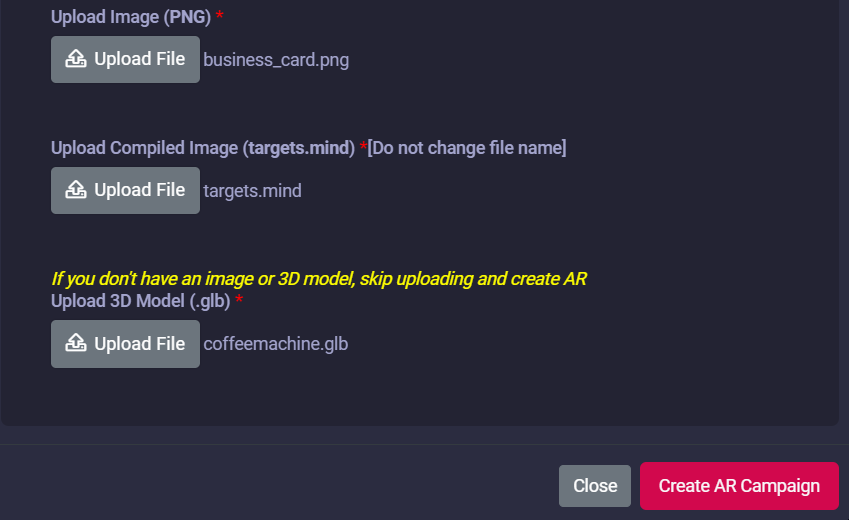
3. Now upload the following to the campaign:
- Target Image (PNG)
- AI trained model for camera recognition (targets.mind)
- 3D model (GLB)
If you don't have a 3D model, no worries - there's a default 3D model in the template (you can change it later anytime after the campaign creation).
Click on the Create AR Campaign button to finish the setup.
4. Your AR campaign can take up to 2 minute to get created. Read here for the associated reasns
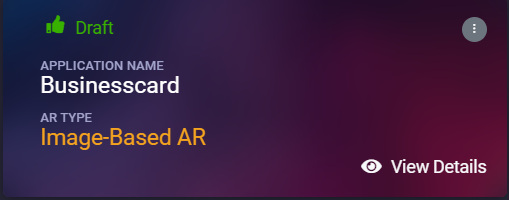
Congratulations! Now you have created your first image-based AR campaign. Enjoy the experience.