How to create location AR campaign
What is Location AR
Location-based AR is a powerful sub-form of a marker less AR system. Therefore, it doesn’t require any physical target or unique markers to execute the rendering of AR experience and identify where to put a virtual object in the user’s environment.
Location-based AR technology, in fact, uses GPS data and a digital compass to define the user’s device location and position. GPS is a system of 30+ navigation satellites circling Earth. We know where they are because they constantly send out signals. A GPS receiver in your phone listens for these signals (a.k.a three satellites at any point of time, any location point). Once the receiver calculates its distance from four or more GPS satellites, it can figure out where you are.
For example, location-based AR would be quite helpful to show outdoor augmented information to the users, who are moving around holding their phone, and then, when a place of interest is spotted, they can move physically near it and enjoy a marker-based in-place experience.
Step by Step Guide to Create Location based AR
Follow the below steps to build your first AR campaign within minutes. Go to the central dashboard (after you login, you land up here) and click on any of the buttons - Create AR Campaign or Add New Campaign.
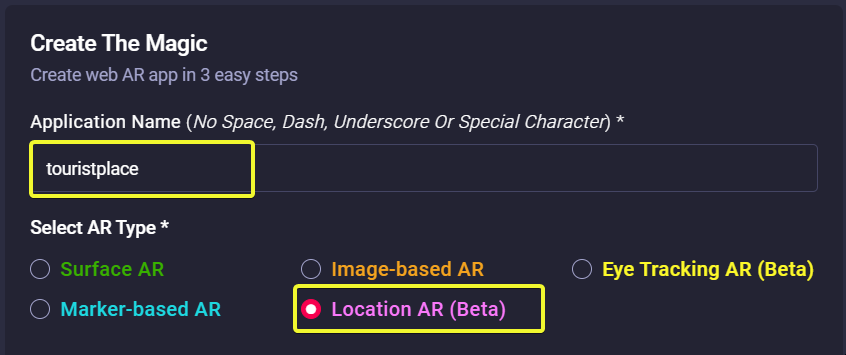
1. Provide a name for your campaign.
Please remember not to use any space, underscore or special characters within the campaign name (Read here the reasons).
2. You need to create a marker which will be displayed over a certain geo-coordinate when users reach there. Marvin XR provides an option to make it more meaningful. Instead of just a red location dot, you can write a piece of text which will be visible to the users. This way, you can promote a certain brand, name, tagline, key phrase or many more.
|
Provide name or description in the next input field that will be displayed over geo-location |
3. Drag the google map to your desired location and place the Red Letter Pin on that specific coordinate. The lattitude and longitude will be automatically updated in the above text.
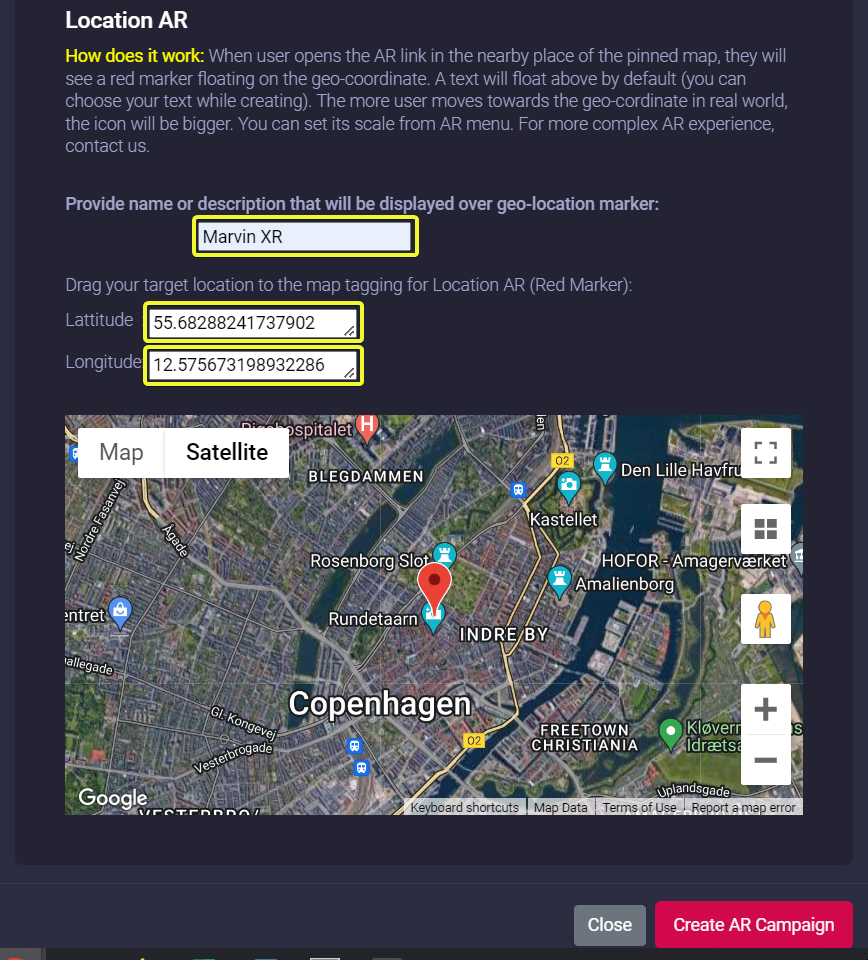
4. Click on the Create AR Campaign button to finish the setup.
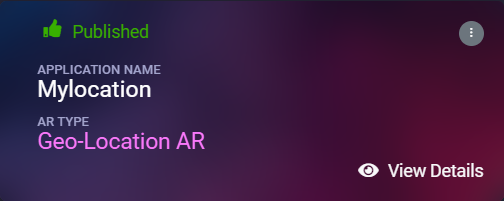
Congratulations! Now you have created your first location-based AR campaign. Enjoy the experience.
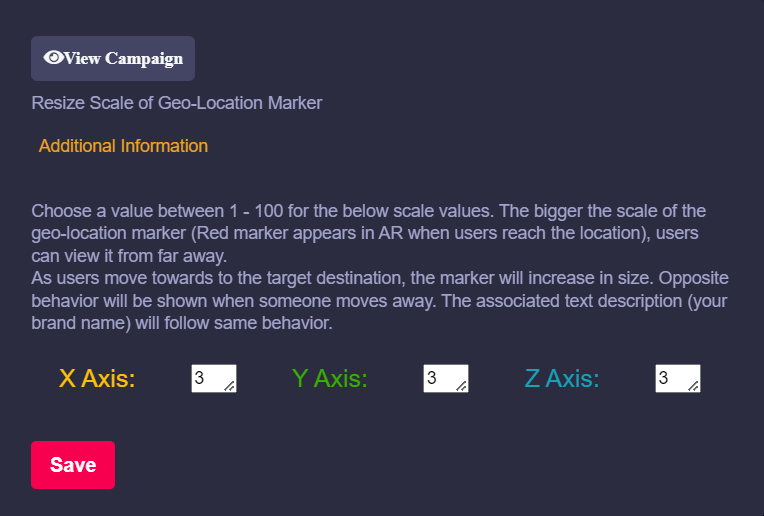
More config: The location AR text will be visible when you are almost close to 1000 meter from the pin pointed coordinate. The more you'll move towards the location, the bigger the marker-text will be. When you reach the target location, you can view the text in the correct sizing.